
Public sector agencies process large volumes of unstructured evidence, such as body camera footage, surveillance video, and scanned documents, that require extracting insights before anyone can act on them. This post shows how to combine Amazon Bedrock Data Automation with the Model Context Protocol (MCP) to turn unstructured data into structured insights. You can then expose those insights through natural language queries in an AI agent, such as Salesforce Agentforce.
In our previous post, Modernizing evidence management in Salesforce Public Sector Solutions with Amazon S3, we used the External Storage of Files with Amazon Simple Storage Service (Amazon S3) integration from Agentforce Public Sector (formerly Public Sector Solutions) as an example implementation. With that foundation in place, you now have durable, cost-efficient storage for body camera footage, surveillance video, photographs, audio recordings, and scanned documents.
However, storage is only half the challenge. Without automation, you spend significant time manually reviewing, classifying, and extracting relevant details from these files before you can act on them. With this integration, Agentforce users can search for processed data stored on AWS, surface key insights from unstructured data, and perform more advanced actions, all without leaving the Salesforce console.
Solution overview
Two main flows work together to turn raw evidence into actionable investigative insights. The first flow moves unstructured media files and documents into Amazon S3 using the External Storage of Files with Amazon S3 for Public Sector connector. Figure 1 illustrates how Amazon S3 provides enterprise-scale storage infrastructure for storing large documents and media files.
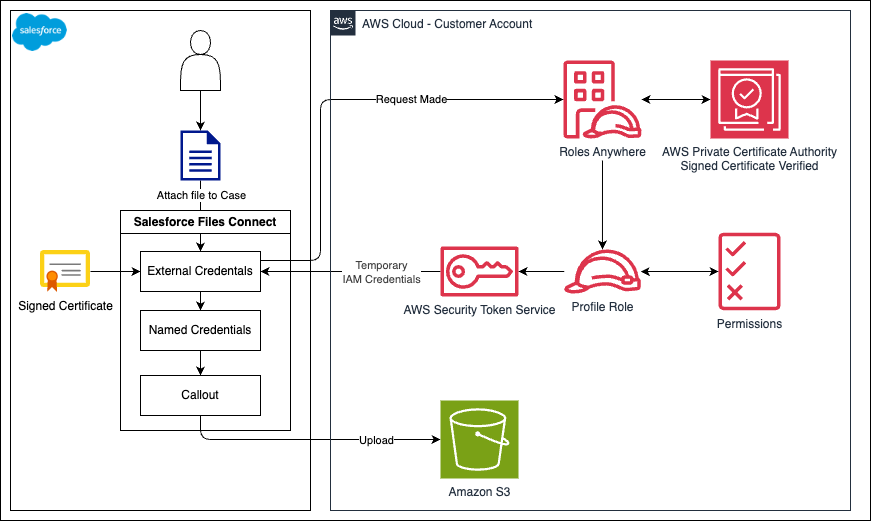
Figure 1: Agentforce Public Sector and Amazon S3 integration
Second, after data is in Amazon S3, an event-driven architecture asynchronously processes multimodal data using Amazon Bedrock Data Automation. Figure 2 shows how you can extend the storage solution to create an architecture pattern. This pattern transforms unstructured data into actionable insights and makes them available to Salesforce Agentforce through MCP.
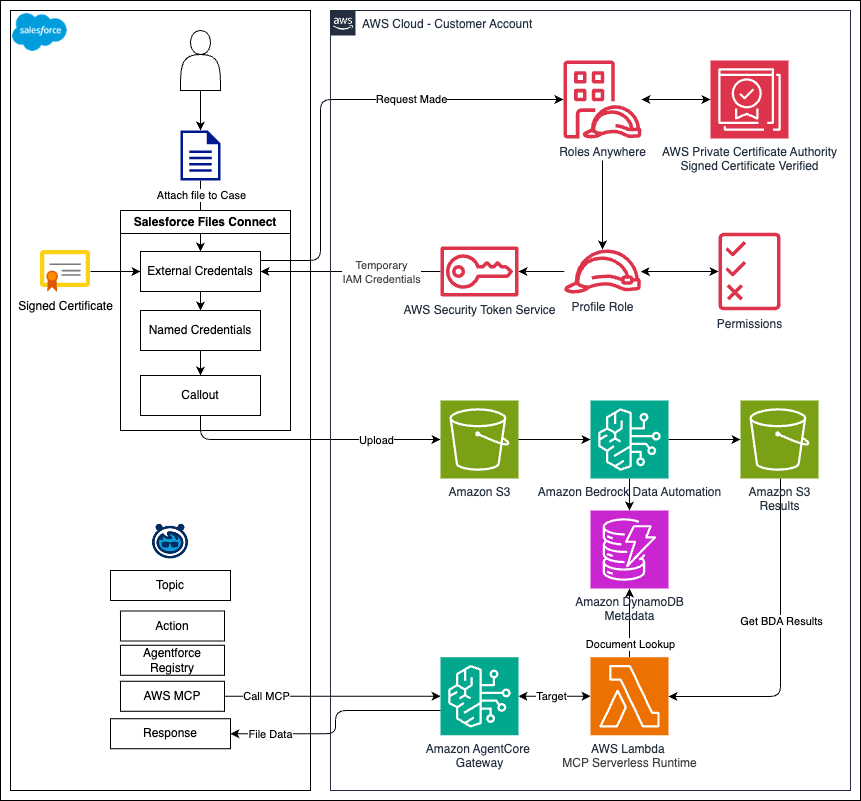
Figure 2: Generating insights from unstructured data
As Figure 2 illustrates, when a file or document lands in Amazon S3, an S3 event notification invokes an AWS Lambda function. The Lambda function generates a document ID, stores it alongside document metadata in Amazon DynamoDB, and starts an Amazon Bedrock Data Automation job to process the file. Amazon Bedrock Data Automation extracts structured insights based on the media type. When the job completes, an Amazon EventBridge rule triggers a second Lambda function that saves the results to a dedicated output bucket in Amazon S3.
On the Salesforce side, a user’s chat in Agentforce triggers a configured action that calls AWS over MCP. The call routes through Amazon Bedrock AgentCore Gateway, a capability of Amazon Bedrock AgentCore, which authenticates the request and invokes an MCP server running on AWS Lambda. Amazon Bedrock AgentCore is the platform to build, connect, and optimize agents at scale, with any framework or model.
The Lambda function first queries the DynamoDB table to locate the relevant results. It then retrieves and returns them from Amazon S3. The results return through AgentCore Gateway to Agentforce, where the data is loaded into the agent’s context for a natural language response.
With Amazon Bedrock Data Automation, you can process each file based on its media type. For documents, it extracts text, identifies key fields, and generates structured summaries. For images, it produces descriptions and identifies objects or text within the frame. For video and audio files, it generates transcriptions and scene-level summaries. The Amazon Bedrock Data Automation project configuration defines which extraction capabilities to apply to each file type, and you can customize these settings in the Amazon Bedrock Data Automation console after deployment.
This processing happens behind the scenes. Salesforce users can upload files, ask questions, and receive AI-powered insights entirely from the Salesforce console, without switching between systems or managing AWS resources directly.
This architecture is intentionally modular and extensible, designed as a pattern you can adapt well beyond evidence management. Each component, from the processing pipeline to the query path, operates independently and can be customized to your agency’s unique requirements. For example, you can add custom processing logic in the AWS Lambda MCP Serverless Runtime or store additional metadata in Amazon DynamoDB for richer document lookups. You can also connect different agent frontends through MCP without changing the underlying data pipeline.
Technical implementation guide
This section walks through deploying the AWS infrastructure and configuring Salesforce Agentforce to connect to the MCP endpoint.
Prerequisites
Before beginning, complete the steps outlined in the previous post, Modernizing evidence management in Salesforce Public Sector Solutions with Amazon S3, as this post builds directly on that foundation. Additionally, confirm that your Salesforce org supports registering and calling external MCP servers through the Agentforce Registry. You can verify this by navigating to Setup > API Catalog > MCP Server and confirming the option to register an MCP server is available. Registering external MCP servers is available in Developer, Enterprise, Performance, and Unlimited Editions (see Manage External MCP Servers).
Deploy AWS Cloud Development Kit (AWS CDK) stack
This GitHub repository provides a deployment of the AWS resources required to create an event-driven architecture. The solution deploys a serverless infrastructure that includes Amazon EventBridge rules, Amazon Bedrock Data Automation configuration, AWS Lambda functions, Amazon DynamoDB tables, and Amazon Bedrock AgentCore Gateway. This sample code is provided to demonstrate the pattern and isn’t production ready, so review and harden it to meet your organization’s requirements before using it in production.
After deploying the AWS CDK stack, configure Salesforce Agentforce to connect to the Amazon Bedrock AgentCore Gateway MCP endpoint. Agentforce connects to AgentCore Gateway using the MCP Streamable HTTP transport. With this connection, Agentforce can discover and invoke the evidence retrieval tools exposed by the gateway. The AWS CDK stack outputs several values you need to configure the connection between Salesforce and AWS. Retrieve these from the AWS Management Console before proceeding.
Optionally, before configuring the Salesforce connection, you can validate your gateway endpoint using the MCP Inspector, a developer tool for testing and debugging MCP servers through an interactive interface. This step isn’t required but can help confirm that your AgentCore Gateway is responding correctly before integrating it with Agentforce.
Step 1: Get AWS CloudFormation outputs
After the Intelligent Media Processing solution is fully deployed, the outputs required to set up the MCP connections are available in AWS CloudFormation under the McpGatewayStack outputs. As shown in Figure 3, the primary outputs are CognitoClientId, CognitoTokenEndpoint, and GatewayMcpEndpoint.
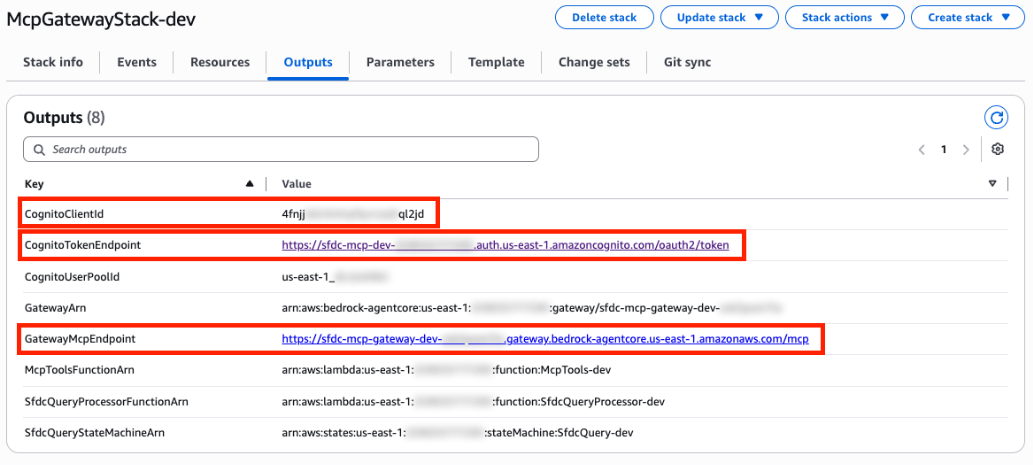
Figure 3: AWS CloudFormation outputs
Agentforce authenticates with AWS through Amazon Cognito. You need the client secret from your Cognito app client to complete the MCP server registration in Salesforce.
Step 2: Get client secret
- Open Amazon Cognito on the AWS Management Console.
- In User Pools, choose the User pool name created by the AWS CloudFormation template.
- Choose the app client that corresponds to this user pool.
Figure 4 displays the Amazon Cognito app client page, where you can find the Client secret.
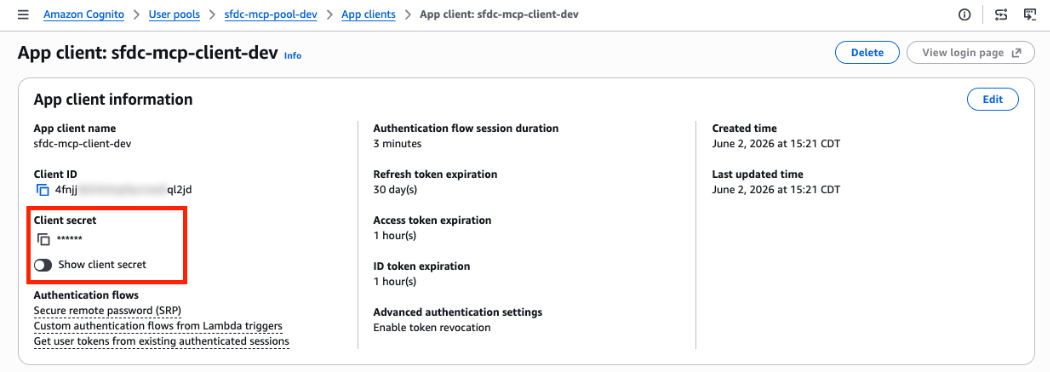
Figure 4: Amazon Cognito client secret
Connect Agentforce to the MCP endpoint
With the AWS credentials in hand, you can now register the MCP server in Salesforce. This establishes the authenticated link so Agentforce can call AWS tools.
Step 3: Create MCP connection
- In the Salesforce Setup console, open Quick Find and search for API Catalog, then choose MCP Server (see Manage External MCP Servers).
- Choose New. Then choose Register MCP Server to create a connection.
- Name the MCP server
AwsBdaResultsMcpand set the description toMCP server for accessing results from Amazon Bedrock Data Automation. - Take the values gathered from AWS in Step 1 and 2 and input them into their corresponding fields, as illustrated by Figure 5, then choose Create and Continue.
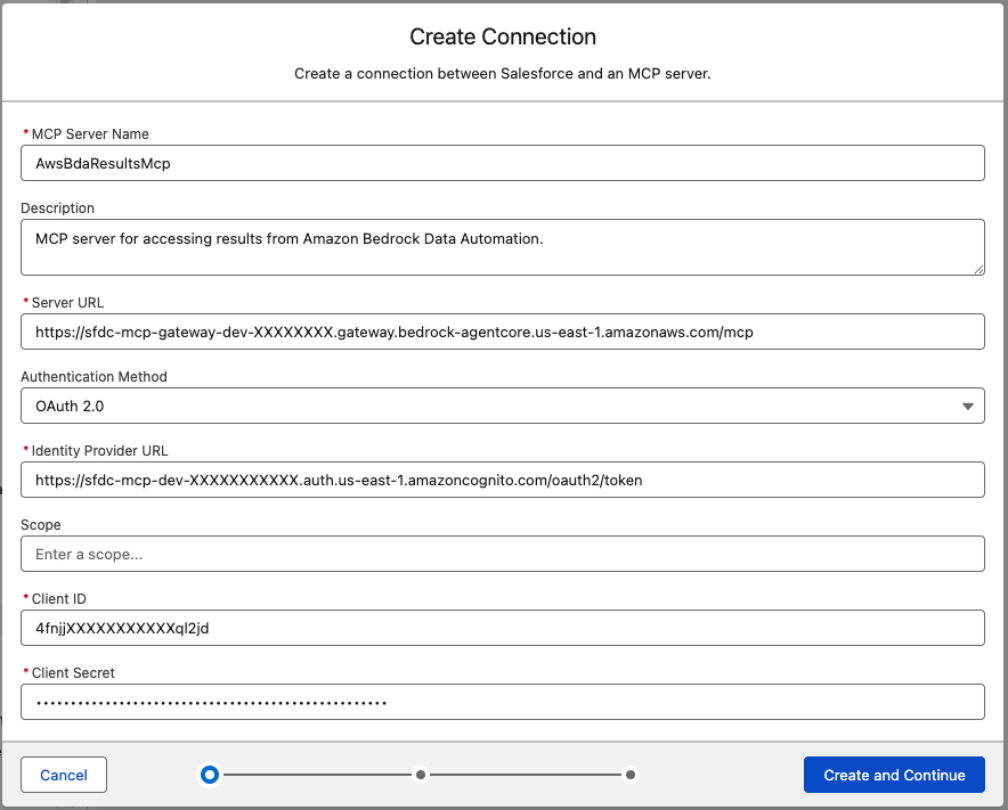
Figure 5: MCP Server create connection
- Follow the prompts. When you reach the MCP Server Allowlist, choose one or more of the available tools that you want to use and that were deployed with the AWS CDK. In production, scope the allowlist to only the tools your agent requires. See the Security considerations section.
- Choose Save.
You have successfully connected your Amazon Bedrock AgentCore MCP server to Salesforce Agentforce.
Configure Agentforce to use MCP
Now that the MCP server is registered, you can add MCP tools to an existing Agentforce subagent, or create a new subagent. The following steps walk through creating a dedicated Agentforce subagent whose primary task is handling requests related to evidence retrieval. This subagent uses the MCP tools to query processed evidence stored in AWS and return insights to the user in natural language.
Step 4: Add MCP tool actions to your Agentforce agent
To integrate an external MCP server, use the new Agentforce Builder. The following steps use the Employee Agent template. You can apply this same MCP integration to other agent types (such as Service Agent or Customer Agent), though the exact navigation and configuration options might vary. If you have an agent that was built using the legacy Agentforce Builder, follow this guide to Upgrade to New Builder.
- From the App Launcher, open Agentforce Studio, then select New Agent. Select Agentforce Employee Agent from the available templates, then name it
Case Agentor a name relevant to your use case. - In Agentforce Builder, create a new subagent. Enter
Media Processoras the name and the following as the description:
Subagent that handles all questions related to files, documents, photos, images, videos, or audio attached to the current case. Retrieves AI-generated insights from processed media and responds in natural language.
- Choose Save.
- In the Media Processor Subagent, under the Actions Available for Reasoning section, choose Add action, then select Add from Asset Library. Search for the MCP tool you registered (searching
AwsBdaResultsMcpnarrows the results to the relevant tools). Figure 6 shows the connected MCP selected under the Actions Available for Reasoning section.
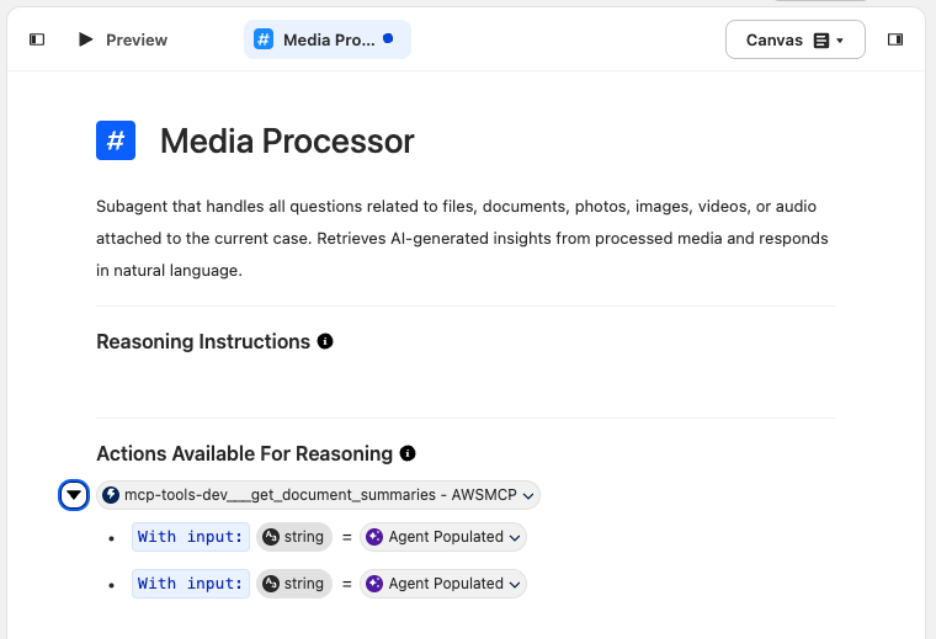
Figure 6: Make MCP available for agent action
- Under Reasoning Instructions, provide the subagent with instructions on what to do and how to reply. Use the following reasoning instruction template:
Handle all questions about files, documents, photos, images, videos, or audio attached to the current case. Run <MCP_PLACEHOLDER> to retrieve processed insights. If no insights are available, inform the user the attachment has not yet been processed. Don't fabricate content about unprocessed files.
- In place of
<MCP_PLACEHOLDER>, enter@to reference a resource inline, then select the MCP associated with this subagent. Figure 7 shows the MCP referenced inline in the Reasoning Instructions.
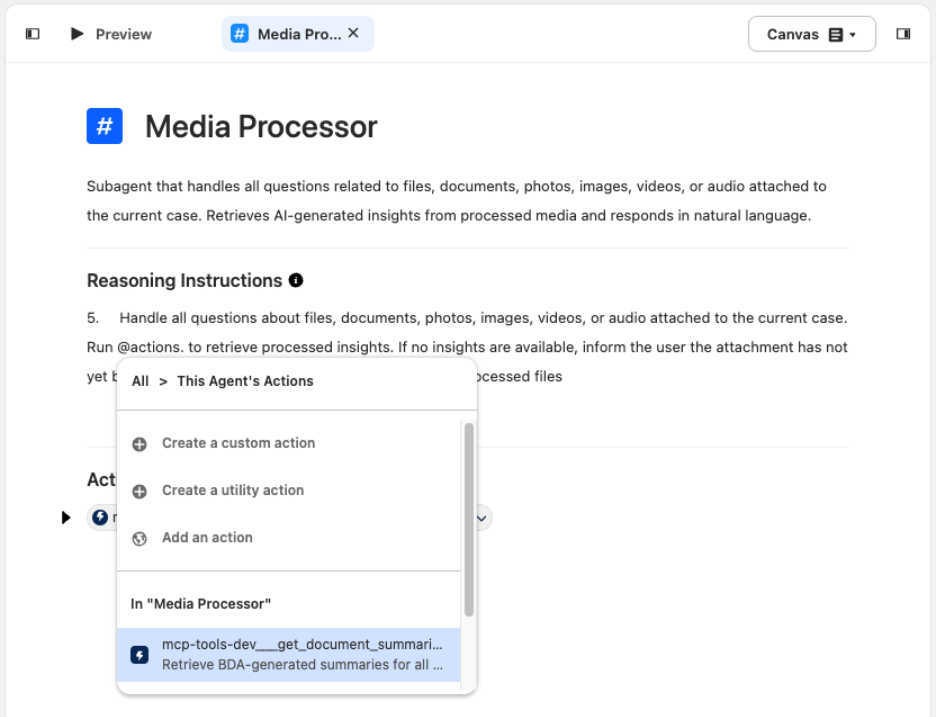
Figure 7: Add MCP to subagent
- With the configuration complete, choose Save to preview the agent.
Step 5: Test and validate MCP integration
With Agentforce Builder, you can preview the agent and how it responds to questions in the chat. To simulate the conditions of an employee asking questions in the Salesforce console, you can modify the Context Variables. These variables represent the values that would be assigned to the agent’s context when a user works in the Salesforce console. Figure 8 shows the Preview panel’s Context Variables in the Agentforce Builder.
To test the agent, set the currentRecordId context variable to the Record ID (the unique 18-character ID) of the case that you want to test. Then choose Apply and Restart Session. This sample uses the Agentforce Employee Agent. Other agent types might have different context variables preconfigured, so adjust accordingly.
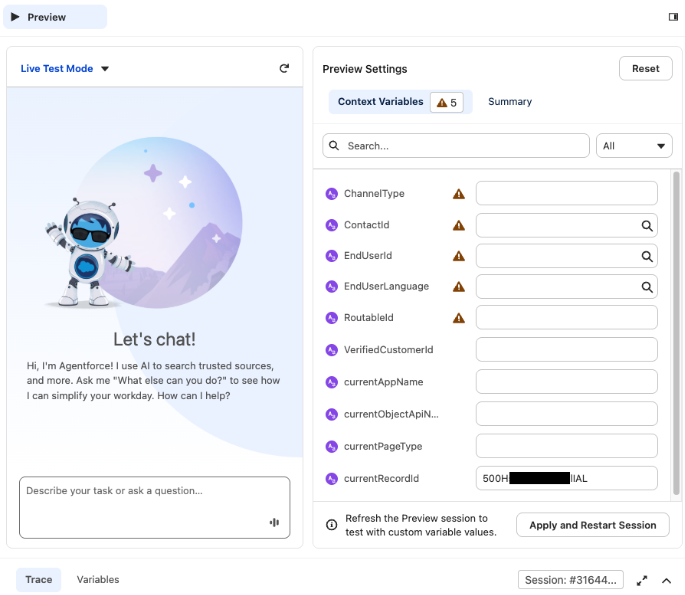
Figure 8: Preview context variables
To test the configuration of the agent and verify that it can make an MCP callout to AWS, perform the following:
- After you set the Context Variables to simulate a case that has media files uploaded to Amazon S3 and processed through this integration, open Preview. Enter a prompt that can trigger the subagent configured in Step 4, such as
Summarize the files for this case. - The test succeeds when the agent returns a summary of each item associated with the case record, as shown in Figure 9.
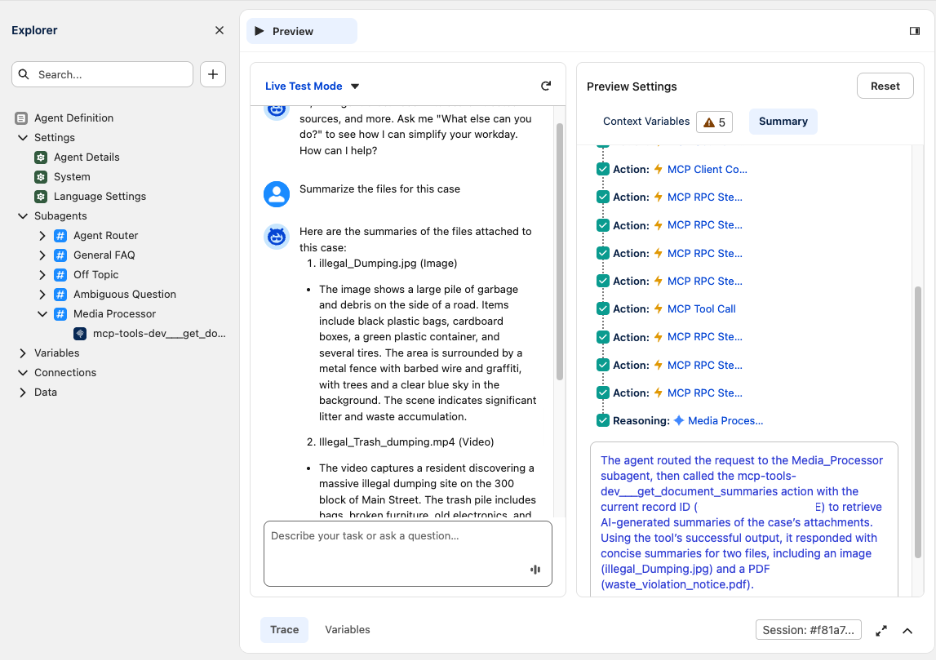
Figure 9: Preview outputs
- To see how the Agentforce agent produced this output, review the Summary outputs. They provide a natural language summary of the trace, explaining the steps the agent took to handle the request (see Figure 10).
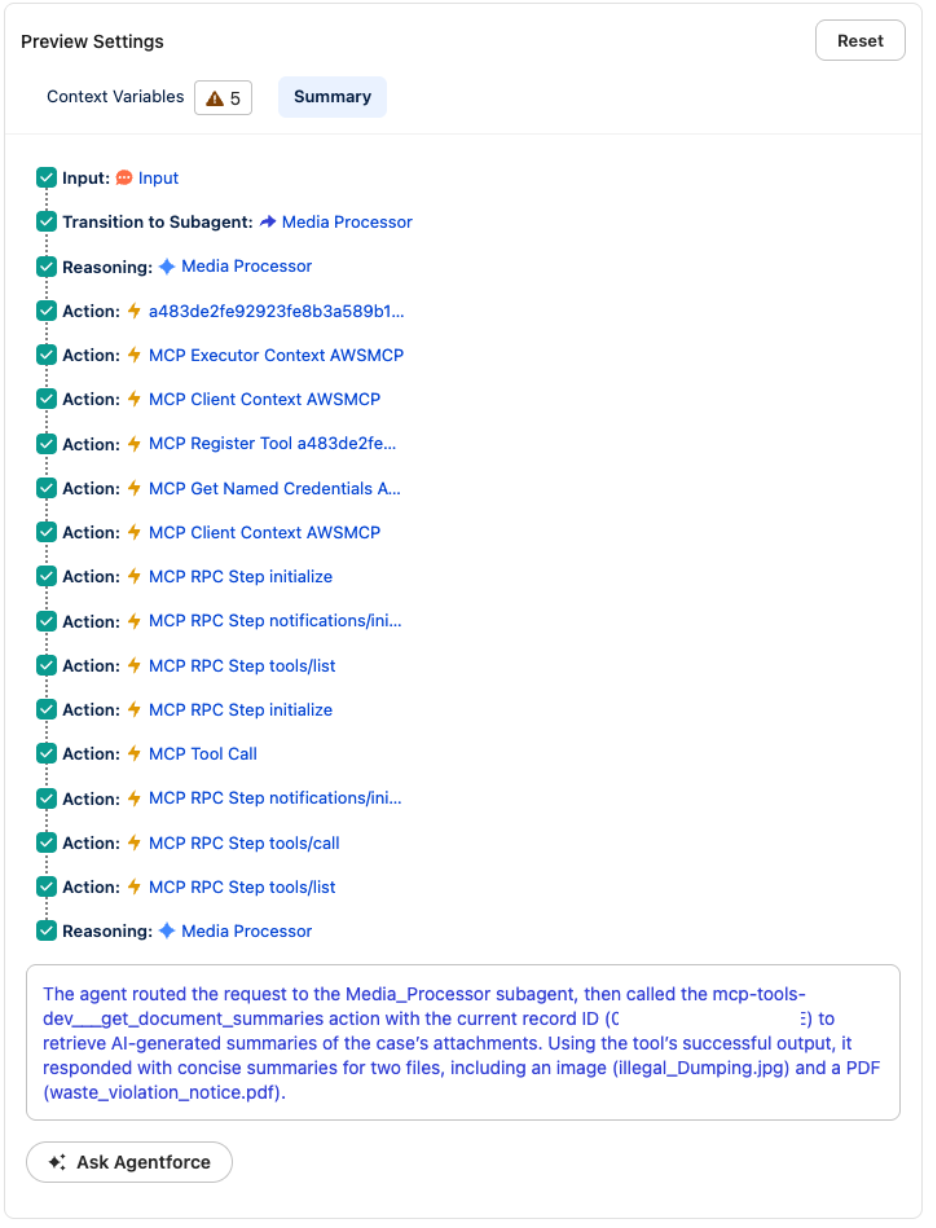
Figure 10: Summary of action
- If there are any changes needed to get the expected outputs, modify the prompt in Agentforce Builder and select Save before testing again in Preview.
- After you are satisfied with the outputs, you can deploy this agent or subagent into the agent interfaces your organization uses.
Extend this pattern to your own use case
The architecture demonstrated in this post is not limited to evidence management. You can apply the same modular pattern to build solutions for workflows that involve processing unstructured data, such as permits, benefits claims, or compliance reviews. The key components are the following:
- Amazon S3 for storage.
- Amazon Bedrock Data Automation for processing.
- Amazon Bedrock AgentCore Gateway for MCP-based tool exposure.
- Salesforce Agentforce for natural language interaction.
Each of these can be recombined and extended for use cases involving unstructured data. Because each component operates independently, you can replace the processing engine to match your agency’s requirements while keeping the same ingestion and MCP query layers. For document-heavy workflows such as permits, benefits claims, or tax forms, you can substitute the GenAI Intelligent Document Processing (IDP) Accelerator as an alternative processing engine. This keeps the same Amazon S3 ingestion and MCP query path. Additionally, because the MCP server is built on an open standard, you only need to build it once. MCP-compatible agents or systems can connect to the same endpoint, so you can reuse the same query layer across multiple applications beyond Agentforce.
Regardless of which processing approach you choose, the MCP query path remains the same. AgentCore Gateway exposes your processed data as tools that MCP-compatible agents can discover and invoke. This means that, in most cases, the architecture supports starting with a single use case and expanding to additional workflows without re-architecting the integration between AWS and Salesforce.
Security considerations
Because this solution connects an AI agent to your data through an MCP server, review its security posture against your organization’s requirements before you move beyond a proof of concept. Under the AWS Shared Responsibility Model, AWS secures the underlying infrastructure, and you secure your implementation. As a starting point, consider which users can access the agent and which tools and actions it can invoke. Also remember that content the agent processes, such as text extracted from evidence, might contain hidden instructions that trick the agent into unintended actions. This risk is known as indirect prompt injection. To mitigate this risk, treat all content extracted from evidence as untrusted data, never as instructions for the agent. Apply input validation on retrieved content before it enters the agent’s context. Scope the agent’s available actions to the minimum required using the MCP allowlist. Use Amazon Bedrock Guardrails to filter or reject content that attempts to override agent behavior. For a broader framework on threats specific to large language models (LLMs), see the OWASP Top 10 for LLM Applications.
This solution processes public sector evidence, so apply responsible AI controls before production. Amazon Bedrock Guardrails can filter harmful content and redact sensitive information such as personally identifiable information (PII). It can also run grounding checks that confirm responses stay grounded in the retrieved evidence rather than fabricated. These are examples, not a complete list. For authoritative guidance on securing agents and MCP tool access, follow Security for agentic AI on AWS, Amazon Bedrock AgentCore best practices, and apply Amazon Bedrock Guardrails with least-privilege controls.
Also, note that the accompanying sample code is intended to demonstrate this pattern and is not production ready. Review and harden it to meet your organization’s requirements before deploying to production.
Clean up
To avoid ongoing charges, clean up your resources when you’re finished experimenting. For step-by-step commands to remove all deployed resources, see the GitHub repo.
You must also manually delete the Agentforce MCP connection in Salesforce.
Because this is an event-driven, serverless architecture, you only pay for what you use. Processing costs are incurred only when evidence is actively uploaded and analyzed. Amazon S3 and Amazon DynamoDB storage costs are based on the amount of data stored, with no minimum commitments or upfront fees. For details, refer to the pricing pages for each service used.
Conclusion
This post demonstrated how to combine Amazon Bedrock Data Automation with the Model Context Protocol to process unstructured evidence and surface structured insights directly in Salesforce Agentforce. Using Amazon Bedrock Data Automation, the architecture automatically extracts text from documents, generates descriptions from images, and produces transcriptions from video and audio files.
This pattern extends well beyond evidence management to public sector workflows involving unstructured multimodal data. For guidance on adapting this architecture to your agency’s specific needs, refer to the Extend this pattern to your own use case section earlier in this post.
The full sample code is available on the GitHub repo. You can also explore extending the solution with additional Amazon Bedrock Data Automation output types. Another option is to integrate Amazon Bedrock Knowledge Bases, the fully managed capability for Retrieval Augmented Generation (RAG), to support RAG-based Q&A across large evidence collections.
About the authors
from Artificial Intelligence https://ift.tt/xSTp9ui